What proctoring covers
Colare assessments are designed to measure real, individual engineering ability. To protect that, every assessment runs through a layered set of integrity controls across three areas.
These controls run in the background, monitor candidate behavior in real time, and flag anything that suggests collaboration, substitution, or attempts to move work off-platform. When something is flagged, it surfaces inside the candidate's report so your team can review it as part of their hiring decision.
Recordings and events are stored privately and securely, visible only to your hiring team and the Colare team.
Session rules
One assessment instance per invitation, tied to one candidate.
Device activity
Tab switches, focus changes, copy-paste, and inactivity.
Proctoring signals
Webcam, multi-face, out-of-frame, and voice detection.
Session rules and access controls
Each assessment attempt is bound to a single instance and session. This limits reuse, parallel attempts, and handoffs between people or devices. A candidate gets one assessment instance per invitation, and that instance is tied to the candidate it was sent to.
Browser and workspace activity monitoring
Colare monitors behaviors associated with looking up answers, collaborating externally, or moving work off-platform.
- Tab switching. Detects when a candidate switches away from the active assessment tab.
- Window focus and blur. Tracks when the assessment window loses focus (e.g., the candidate clicks into another window or app) and when it returns.
- Disabled copy and paste. Copying and pasting text from the question screen is disabled, minimizing the risk of assessment questions being shared online.
- Inactivity monitoring. Flags extended idle time that may indicate off-screen collaboration or disengagement from the task.
Proctoring and environment signals
Video and audio signals run alongside browser monitoring to verify the candidate is completing the assessment in a controlled environment.
- Proctoring event monitoring. Captures and logs proctoring-related events and anomalies during the session for review.
- Multiple faces detected. Flags when more than one person appears in view, indicating potential collaboration.
- Face out of frame. Flags sustained periods where the candidate's face isn't visible, which can indicate substitution or off-screen assistance.
- Voice detection. Flags sustained speech or voices that may indicate coaching, collaboration, or an uncontrolled environment.
What candidates see
Before starting an assessment, candidates are prompted to enable webcam, microphone, and screen sharing access. They review and accept the assessment's terms and conditions, which explain that their session will be proctored.
Candidates who deny access to required permissions and still attempt the assessment may have their application rejected by your team. Knowing that candidates are aware of monitoring before they start helps you frame any flagged behavior appropriately when reviewing their results.
How flagged behavior is evaluated
Colare does not auto-fail any candidate for a single signal. Each integrity event contributes to an overall integrity count for that candidate's session.
This approach lets your hiring team:
- Review flagged behaviors in context, including what was flagged and when in the session it occurred
- Compare integrity signals across candidates taking the same assessment
- Make informed, defensible hiring decisions grounded in the full picture of the session
The five proctoring settings
Each assessment has its own proctoring configuration under Settings → Test Integrity. This lets you tailor monitoring to the specific role you're hiring for, since the right level of strictness varies between roles, candidate pools, and seniority levels.
To configure proctoring for a specific assessment, open the assessment from the Tests section, click into the Settings tab, and select Test Integrity. From here, you can toggle each of the following:
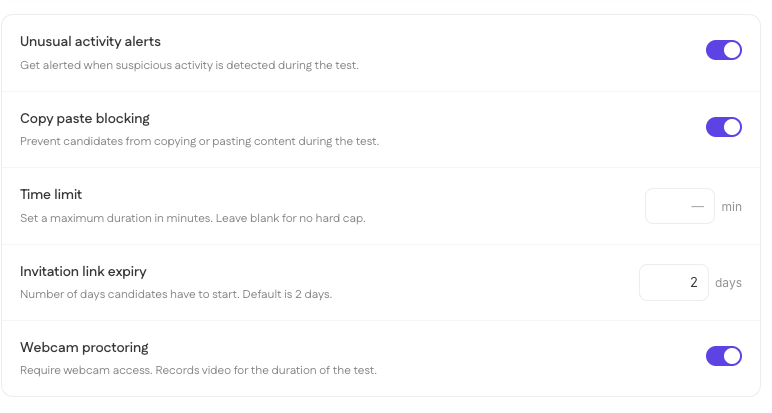
Click Save to apply your changes. Settings configured here apply only to this specific assessment, so if you want different proctoring behavior across different roles, you can configure each assessment independently.
Reviewing flagged behavior
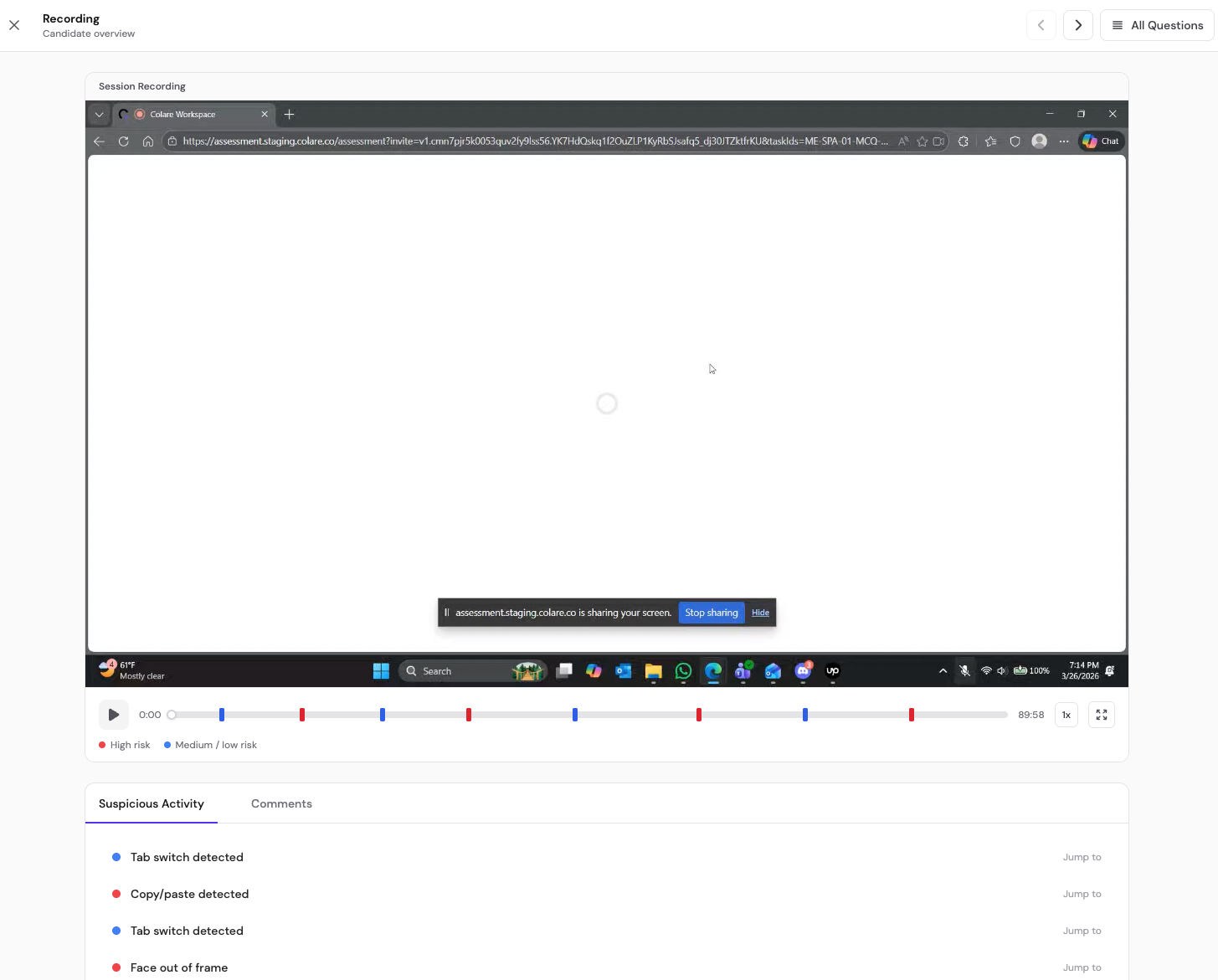
Once an assessment has been taken, any flagged behavior surfaces in two places.
The candidate's individual report shows an Integrity Issues card on the Performance Overview tab, with the count of flags raised during their assessment. If no issues were detected, the card reads "0 flags, no issues detected." If there are flags, the count reflects the number of issues raised.

Replay
To dig into a flag, you can use the replay feature. Replays are always available for every candidate, regardless of whether their assessment was flagged. They show the candidate's keystrokes, navigation, and decision-making over the course of the test, in real time or sped up.
Access the replay feature by clicking into a candidate's Detailed Report. Use replay as a verification tool when you want to understand exactly what happened during a specific moment of the assessment.
Best practices
A few notes on how teams typically configure proctoring. These are starting points , adjust based on the role and the candidate experience you want to create.
High-volume roles
Stricter proctoring (alerts on, copy-paste blocking on, webcam on) helps you maintain integrity at scale when reviewing a large number of submissions.
Time limits & link expiry
Worth setting deliberately. The default 2-day link expiry works for most teams, but extend it if you're hiring on a longer cycle or accommodating candidates across time zones.
What's next
For more on where flagged behavior surfaces after a candidate completes an assessment, see How to review candidate scores. For more on the dashboard view that surfaces candidates needing your attention, see Understanding Colare's dashboard. For more on the send flow that ties into invitation link expiry, see How to send an assessment.